Explore Helix: A Modern Terminal Text Editor
sudo pacman -S helix
Helix Text Editor
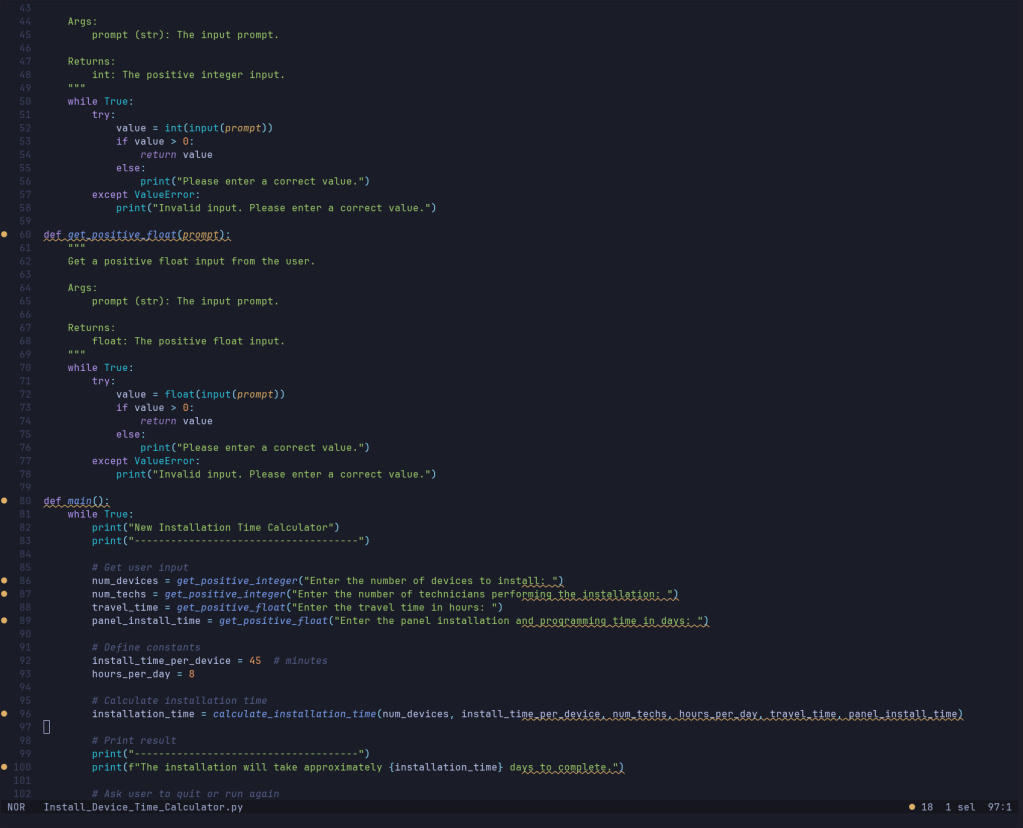
Helix is a modern, terminal-based text editor written in Rust that focuses on providing a fast, reliable, and powerful editing experience with built-in Language Server Protocol (LSP) support.
Key Features
Core Philosophy
- Kakoune-inspired : Uses a selection-first editing model where you select text first, then perform actions
- Modal editing : Like Vim, but with a different approach to modes and commands
- Built-in LSP : Language Server Protocol support out of the box for intelligent code editing
- Tree-sitter : Uses tree-sitter for syntax highlighting and code analysis
Performance & Architecture
- Written in Rust : Fast, memory-safe, and reliable
- Async LSP : Non-blocking language server integration
- Efficient rendering : Optimized terminal rendering for smooth scrolling and editing
Built-in Features
- Multiple selections : Edit multiple locations simultaneously
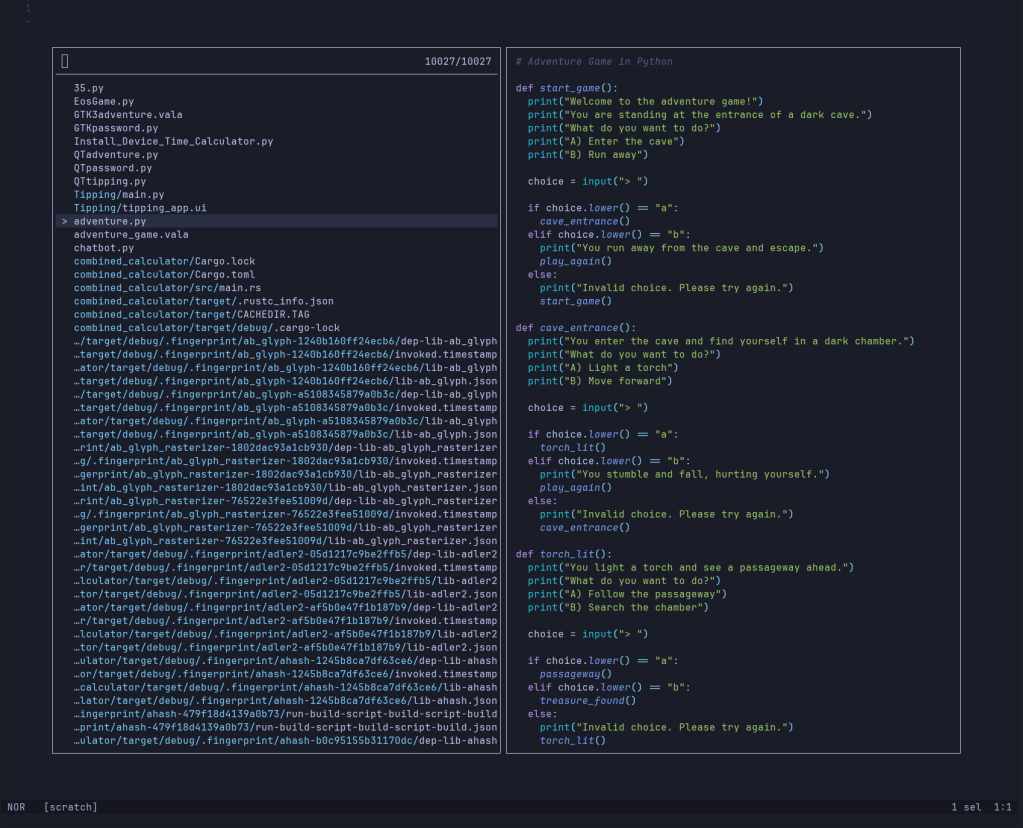
- Fuzzy finder : Built-in file and symbol search
- Git integration : Shows git status in the gutter
- Auto-completion : Intelligent code completion via LSP
- Diagnostics : Real-time error and warning display
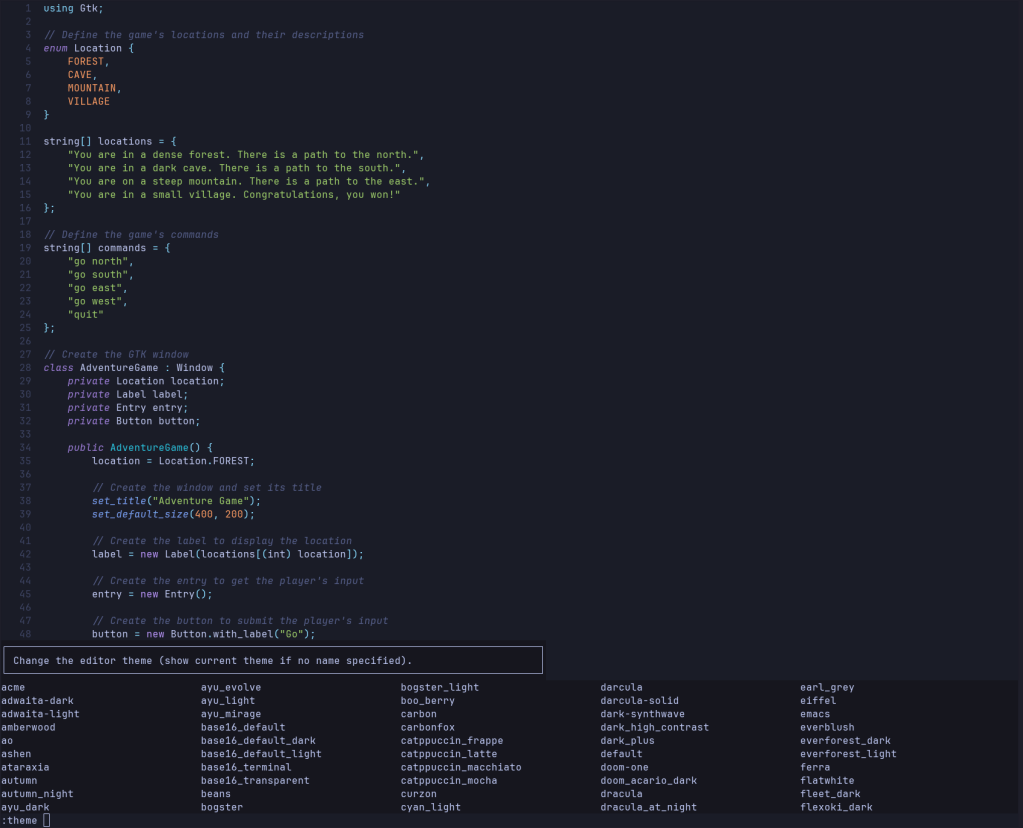
- Multiple themes : Various color schemes included
Installation
Package Managers
# Arch Linux
sudo pacman -S helix

# macOS (Homebrew)
brew install helix

# Ubuntu/Debian (via snap)
sudo snap install helix --classic

# Cargo (from source)
cargo install helix-term
Post-installation
# Install language servers for better experience
hx --health
Basic Usage
Opening Files
# Open a file
hx filename.txt

# Open multiple files
hx file1.rs file2.py

# Open directory (file picker)
hx .
Key Concepts
Selection-First Editing
Unlike Vim’s action-first model (dw = delete word), Helix uses selection-first:
- Select what you want to change
- Perform the action
Common Key Bindings
i- Insert mode (before selection)a- Insert mode (after selection)o- Insert new line belowd- Delete selectionc- Change (delete and enter insert mode)y- Yank (copy)p- Pasteu- UndoU- Redo:- Command modeEsc- Return to normal mode
Navigation
h,j,k,l- Move left, down, up, rightw- Move to next word starte- Move to next word endb- Move to previous word startg- Go to start of fileG- Go to end of file%- Go to matching bracket
Selection
x- Select lineX- Extend selection to lines- Select all regex matches in selection;- Collapse selection to cursorAlt + ;- Flip selection cursor and anchor
File Operations
Ctrl + o- Open file pickerCtrl + s- Save file:w- Save file (command mode):q- Quit:wq- Save and quit
Search and Replace
/- Search forward?- Search backwardn- Next search resultN- Previous search result*- Search for word under cursor
Configuration
Config File Location
- Linux/macOS:
~/.config/helix/config.toml - Windows:
%APPDATA%/helix/config.toml
Basic Configuration Example
theme = "onedark"[editor]
line-number = “relative” mouse = false cursorline = true auto-completion = true auto-format = true idle-timeout = 400
[editor.cursor-shape]
insert = “bar” normal = “block” select = “underline”
[editor.file-picker]
hidden = false
[keys.normal]
C-s = “:w”
Language Configuration
Languages are configured in ~/.config/helix/languages.toml:
[[language]]
name = "rust"
auto-format = true
formatter = { command = "rustfmt" }

[[language]]
name = "python"
language-server = { command = "pylsp" }
auto-format = true
Language Server Protocol (LSP)
Supported Features
- Auto-completion : Intelligent code suggestions
- Go to definition : Navigate to symbol definitions
- Find references : Find all references to a symbol
- Hover documentation : Show documentation on hover
- Diagnostics : Real-time error and warning display
- Code actions : Quick fixes and refactoring suggestions
Common LSP Commands
Ctrl + k- Show hover documentationgd- Go to definitiongr- Go to referencesgi- Go to implementationgt- Go to type definitionSpace + a- Code actionsSpace + r- Rename symbol
Health Check
# Check LSP server status
hx --health

# Check specific language
hx --health rust
Advantages Over Other Editors
vs Vim/Neovim
- Built-in LSP : No complex plugin setup required
- Modern defaults : Sensible configuration out of the box
- Multiple selections : More powerful than Vim’s visual mode
- Tree-sitter : Better syntax highlighting and code understanding
vs VS Code
- Terminal-based : Works over SSH, lightweight
- Fast startup : No electron overhead
- Keyboard-focused : Efficient for power users
- Minimal dependencies : Self-contained binary
vs Emacs
- Simpler configuration : TOML instead of Lisp
- Modern architecture : Built with current best practices
- Faster : Rust performance vs Elisp
Common Workflows
Code Navigation
- Use
Ctrl + oto open file picker - Use
Ctrl + pfor symbol picker in current file - Use
Space + sfor workspace symbol search - Use LSP commands (
gd,gr) for code navigation
Multi-cursor Editing
- Select text with
s(regex) - Use
Alt + sto split selections - Edit all selections simultaneously
- Use
&to align selections
Git Workflow
- View git status in gutter
- Use
:sh git statusfor detailed status - Stage/unstage hunks (if git integration is configured)
Learning Resources
- Tutorial : Run
hx --tutorfor interactive tutorial - Help : Press
Space + ?for key binding help - Documentation : Official docs at helix-editor.com
- Health check :
hx --healthto verify setup
Helix represents a modern take on terminal text editing, combining the efficiency of modal editing with contemporary language tooling and a focus on discoverability and ease of use.